Online handwriting remover for scanned PDFs
When a worksheet, exam paper, or signed agreement is saved as a PDF, the handwriting is baked into the pixels of each page. To remove handwriting from a PDF, the file is first split into page images in your browser, then each page runs through our AI handwriting remover before you export the cleaned result.
01
Upload your PDF document
Select one or more PDF files from your computer or phone. Each page of the PDF is automatically converted into a high-resolution page preview.
02
Remove handwriting from document pages
Review the extracted pages, reorder or rotate if needed, and click Start Removing to erase pen, pencil, and red grading marks.
03
Download a clean PDF, PNG, or ZIP
Export all cleaned pages back into a single printable PDF, or download individual page images.
Remove annotations from PDF scans (pen, pencil, and markup)
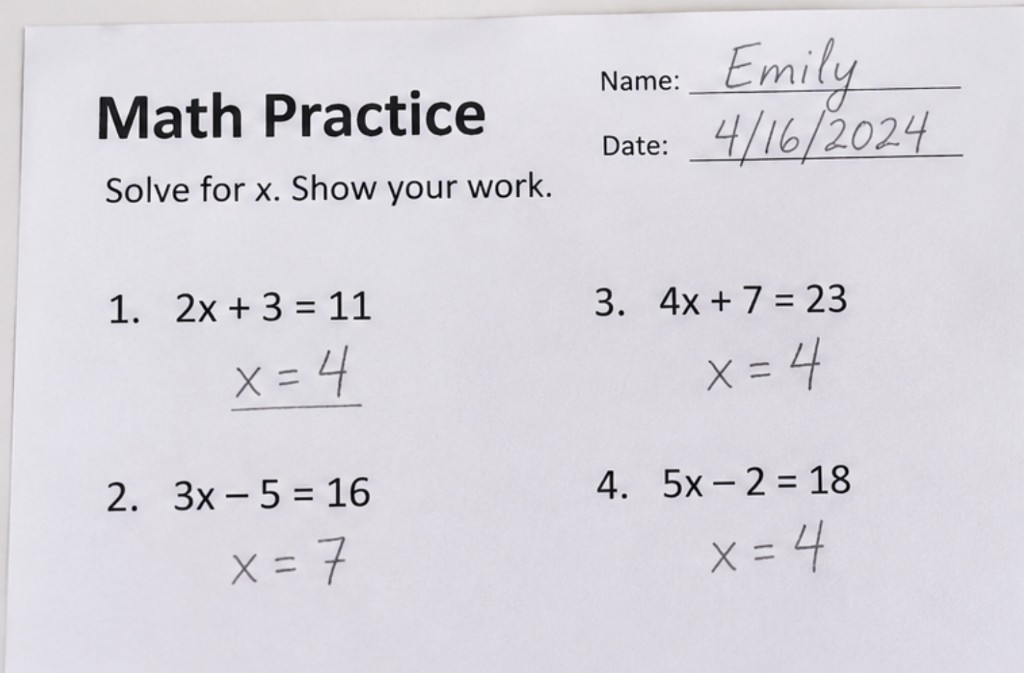
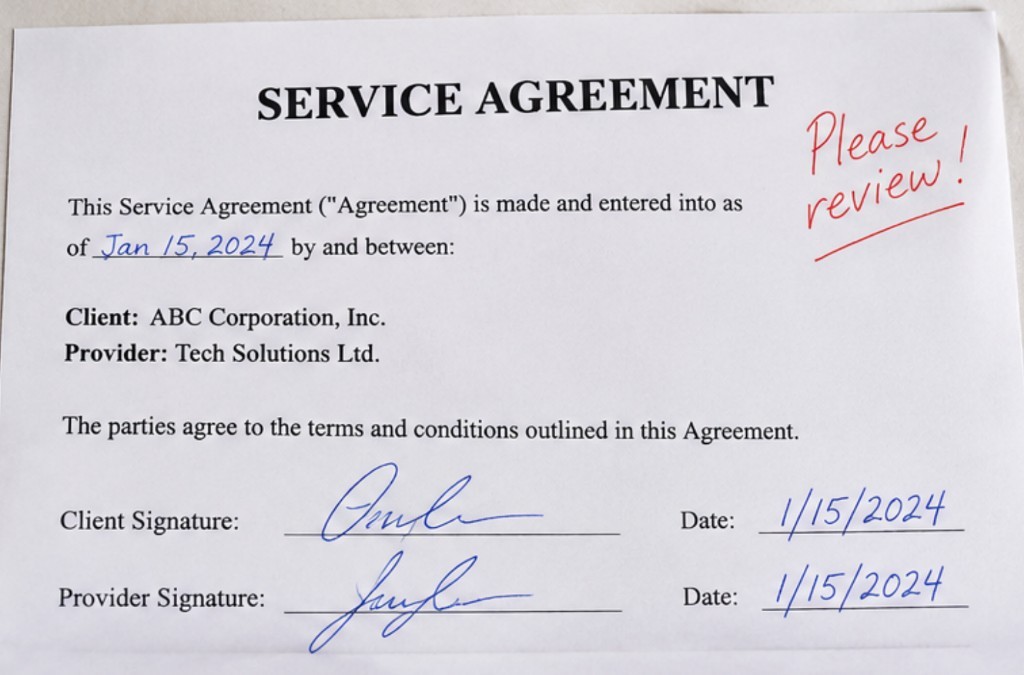
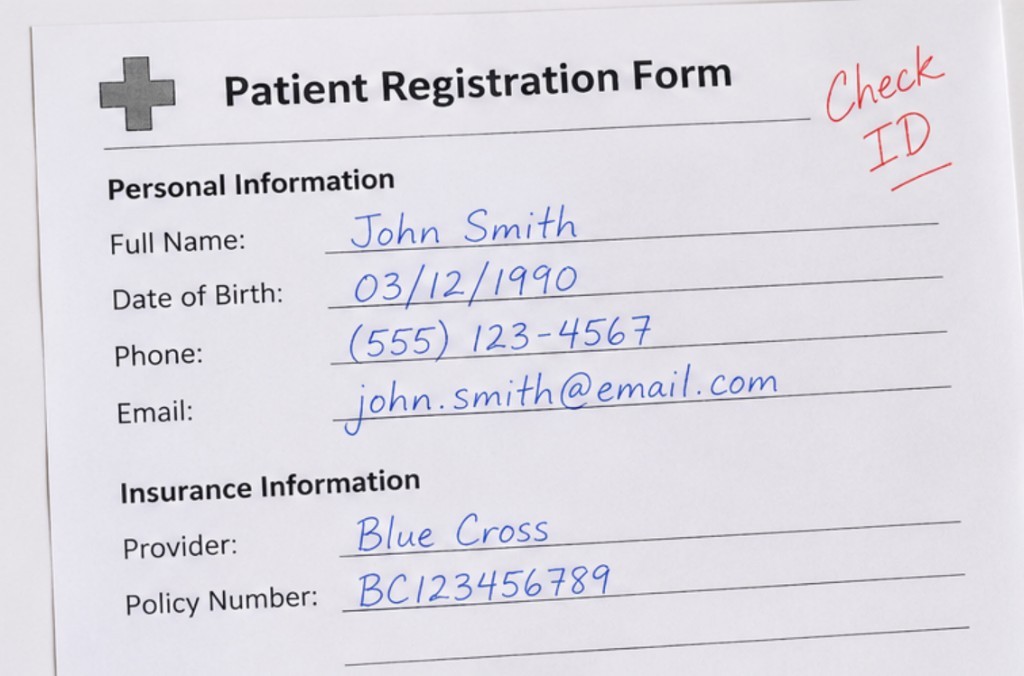
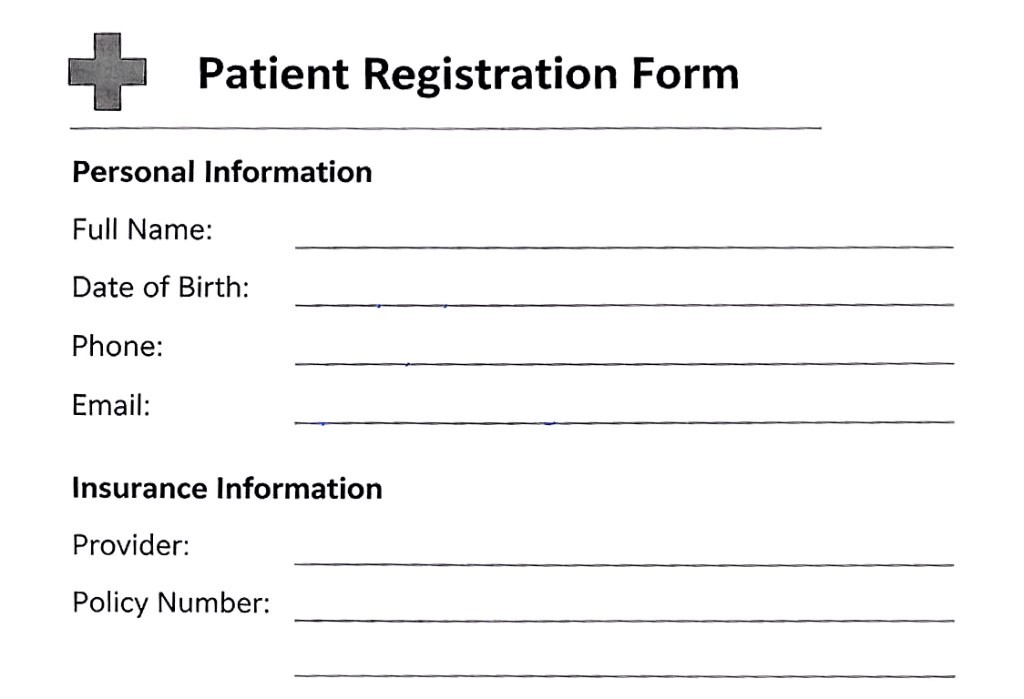
If someone wrote on paper with a ballpoint pen, highlighter, or red marker before scanning, PDF reader tools cannot select or delete those marks. Use this page to remove annotations from PDF scans—including margin notes, circled answers, checkmarks, and handwritten signatures—while keeping the original printed typography, table borders, and charts intact.
Remove handwriting from document files for reprinting and reuse
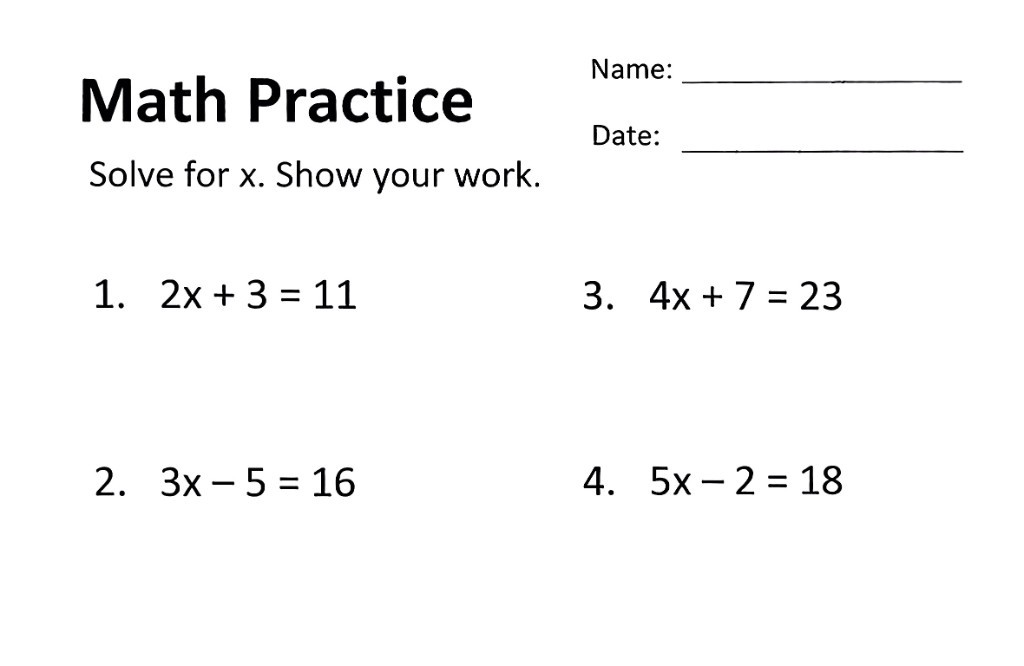
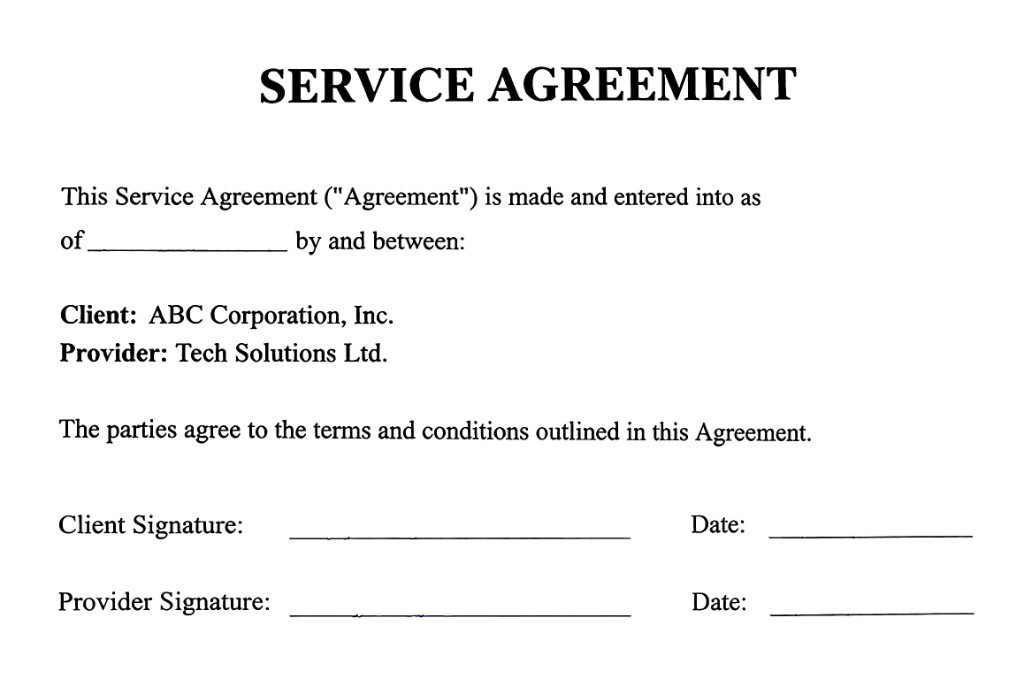
Students and teachers use this workflow to turn completed PDF workbooks and past exam papers back into blank practice tests. Offices and legal teams use it to strip filled-in entries and review notes from scanned forms and service agreements so the clean template can be printed or shared again. If your file is already a JPG or PNG photo rather than a PDF, use remove handwriting from image.
Free vs. Pro for multi-page PDFs
Every PDF page is processed as one page image. The Free plan includes 5 credits (1 page per job, valid for 1 week after signup, with a watermark). Upgrading to Pro removes the watermark, unlocks direct PDF export, and lets you remove handwriting from up to 15 PDF pages in a single batch. Uploaded files and cleaned outputs are deleted automatically within 24 hours.
Standard PDF editors vs. AI PDF handwriting remover
Ordinary PDF editors only delete digital comment layers. Once a page is scanned, you need pixel-level handwriting removal that preserves printed text.
Scanned pen & pencil marks
- Standard PDF editors
- Cannot select or delete ink inside a scanned PDF
- High-contrast filters
- Dark pen ink and signatures remain visible
- This site
- Automatically erases pen, pencil, and red markup from each PDF page
Printed text & form lines
- Standard PDF editors
- Requires covering text with white boxes by hand
- High-contrast filters
- Washes out light table borders and colored charts
- This site
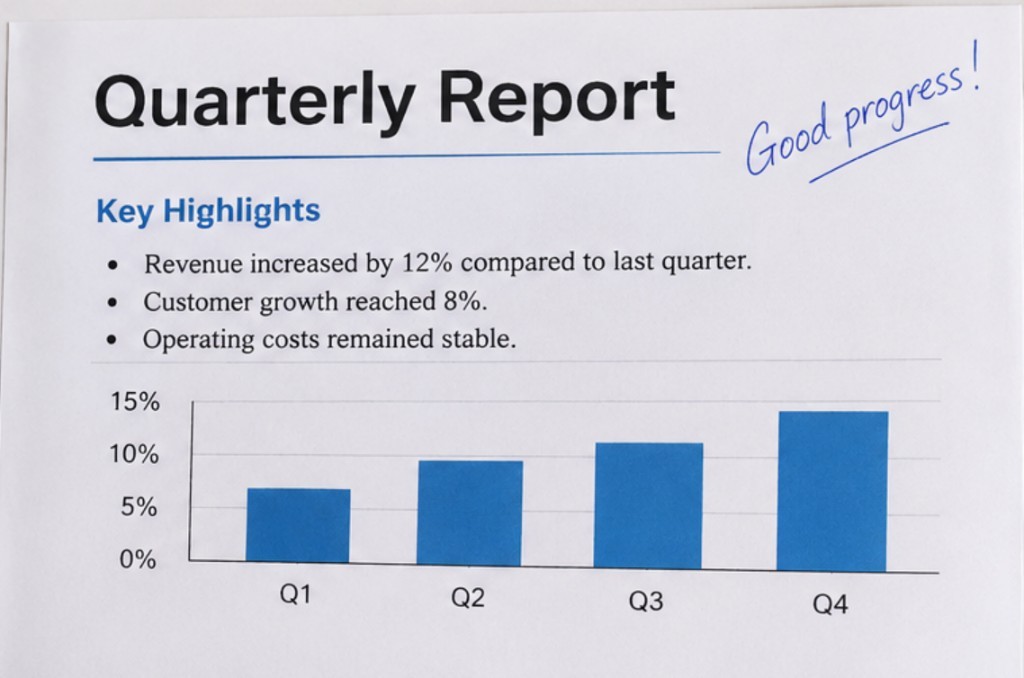
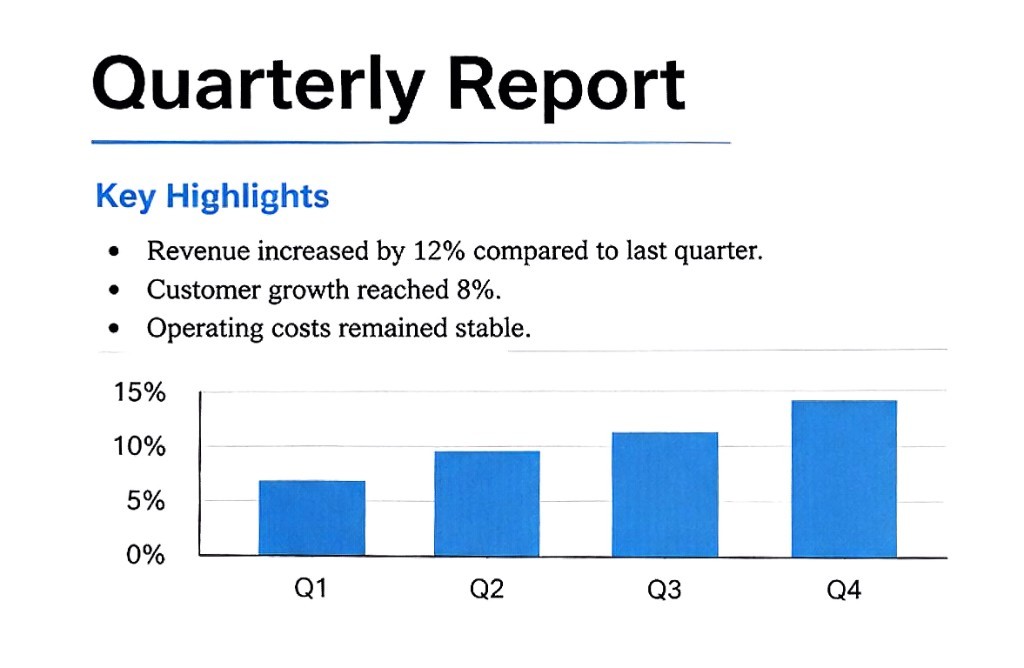
- Preserves printed text, underlines, tables, and charts
Multi-page workflow
- Standard PDF editors
- Manual white-out box by box on every page
- High-contrast filters
- Leaves blotchy gray backgrounds
- This site
- Splits PDF pages automatically and exports a clean PDF
Before and after removing handwriting from PDF pages
Before
After
Before
After
Before
After
Before
After
Related tools
Have a JPG or PNG photo of a page instead of a PDF? Erase pen ink and handwriting directly from images.
Scan documents online in your browserBack to the homepage to scan documents online. Same upload, flatten, and PDF export.
Photo to scanned documentKeep the handwriting and turn a phone photo into a flattened, shadow-cleaned scan.
Remove handwriting from PDF FAQ
How do I remove handwriting from a scanned PDF?
Upload the PDF above. The browser splits the PDF into individual page images, lets you arrange or rotate them, and then erases pen, pencil, and marker handwriting from each page while keeping the printed text.
Can this remove annotations from PDF files that were flattened or scanned?
Yes. Unlike standard PDF readers that only remove digital sticky notes or vector highlights, this tool cleans handwritten annotations, pen notes, and grading marks that are part of the scanned page image.
Will removing handwriting from a document erase the printed lines or tables?
No. The handwriting remover separates handwritten strokes from machine-printed text, underlines, table borders, and charts so the blank template stays intact.
How many pages can a PDF have?
On the Free plan you can process 1 page per job (5 free credits valid for 1 week after signup, with a watermark). Pro removes the watermark and processes up to 15 PDF pages per job, exporting them back into a single clean PDF.
What happens to the photos I upload?
Any photos you upload and any scans we generate are deleted automatically within 24 hours. Please download your scanned files before then.
Remove handwriting from your PDF now
Upload a PDF file above—pages are split and cleaned automatically in your browser.
Remove handwriting from your PDF now