Velmora · September 17, 2026
CamScanner, Adobe Scan, and iScanner Alternatives Compared
Ten identical photos went through four scanners, and the outputs are shown next to each other below so you can judge page shape, leftover desk, and shadows yourself. If you want to leave an app without installing another one, this browser tool is one option: open the page, shoot with the camera, or drop in pictures you already have. Same photos, four scanners, then notes on Genius Scan, Microsoft Lens, Drive, and Notes.
Updated September 17, 2026. Side-by-side output notes; features taken from public product pages as of September 6, 2026.
Web Document Scanner is ours. The other names belong to their companies. We are not affiliated with them. The pictures show four products; the rest are written up because they come up in the same conversations.
The short version
Three things separate the outputs on this set: whether the page came back as a rectangle, how much desk was left around it, and whether the lamp hotspot was evened out or left in. The pictures below show what each tool did on the same angled and unevenly lit shots; we describe what is visible and leave the ranking to you. Keep an app if you want OCR and a scan library that lives in that app. The browser tool finds the paper, flattens it, and cleans shadows — on a phone you can open the camera from the page; on a computer you can upload a folder of shots.
What actually differs
Most of these tools crop, straighten, and make a multi-page PDF. The split is whether you need an app, how you take the picture, and whether cleanup happens without you dragging corners.
Web Document Scanner
- App required
- No, browser
- How you capture
- Page camera or upload
- Automatic cleanup
- Detect, flatten, shadow cleanup
- Batch
- Yes, up to 15 on Pro
- Best when
- You want a CamScanner / Adobe Scan / iScanner alternative in the browser
Adobe Scan
- App required
- Yes, iOS/Android
- How you capture
- App camera or import
- Automatic cleanup
- Auto crop, cleaning, AI straightening
- Batch
- Yes, High-Speed Scan
- Best when
- You already live in Adobe cloud
CamScanner
- App required
- Yes, iOS/Android
- How you capture
- App camera or import
- Automatic cleanup
- Auto crop, perspective, enhancement
- Batch
- Yes, Batch Scan
- Best when
- You want the app plus OCR
iScanner
- App required
- Yes, iOS/Android
- How you capture
- App camera or import
- Automatic cleanup
- Auto crop, skew/curve, cleanup
- Batch
- Yes
- Best when
- You want scan plus an editor
Genius Scan
- App required
- Yes, iOS/Android
- How you capture
- App camera or import
- Automatic cleanup
- Detection, distortion, shadow removal
- Batch
- Yes
- Best when
- You want processing on the phone
Apple Notes
- App required
- Yes, iPhone/iPad
- How you capture
- Mostly the live camera
- Automatic cleanup
- Boundary detection
- Batch
- Yes, pages into one PDF
- Best when
- You are already in Notes on Apple
Google Drive
- App required
- Yes, Drive mobile app
- How you capture
- App camera or import
- Automatic cleanup
- Auto capture, crop, filters, cleanup
- Batch
- Yes
- Best when
- The file should live in Drive
OnlineCamScanner
- App required
- No, browser
- How you capture
- Upload
- Automatic cleanup
- Corner detection, then adjust-and-crop
- Batch
- Yes
- Best when
- You are fine editing corners
OptiPix Document Scanner
- App required
- No, browser-local
- How you capture
- Upload
- Automatic cleanup
- Edge detection and perspective
- Batch
- Yes
- Best when
- You want it processed on the device
Feature rows summarize official product or help pages as of September 6, 2026. They are not a quality score. Microsoft Lens is omitted because it stopped new scans after March 9, 2026.
Same photos, four scanners
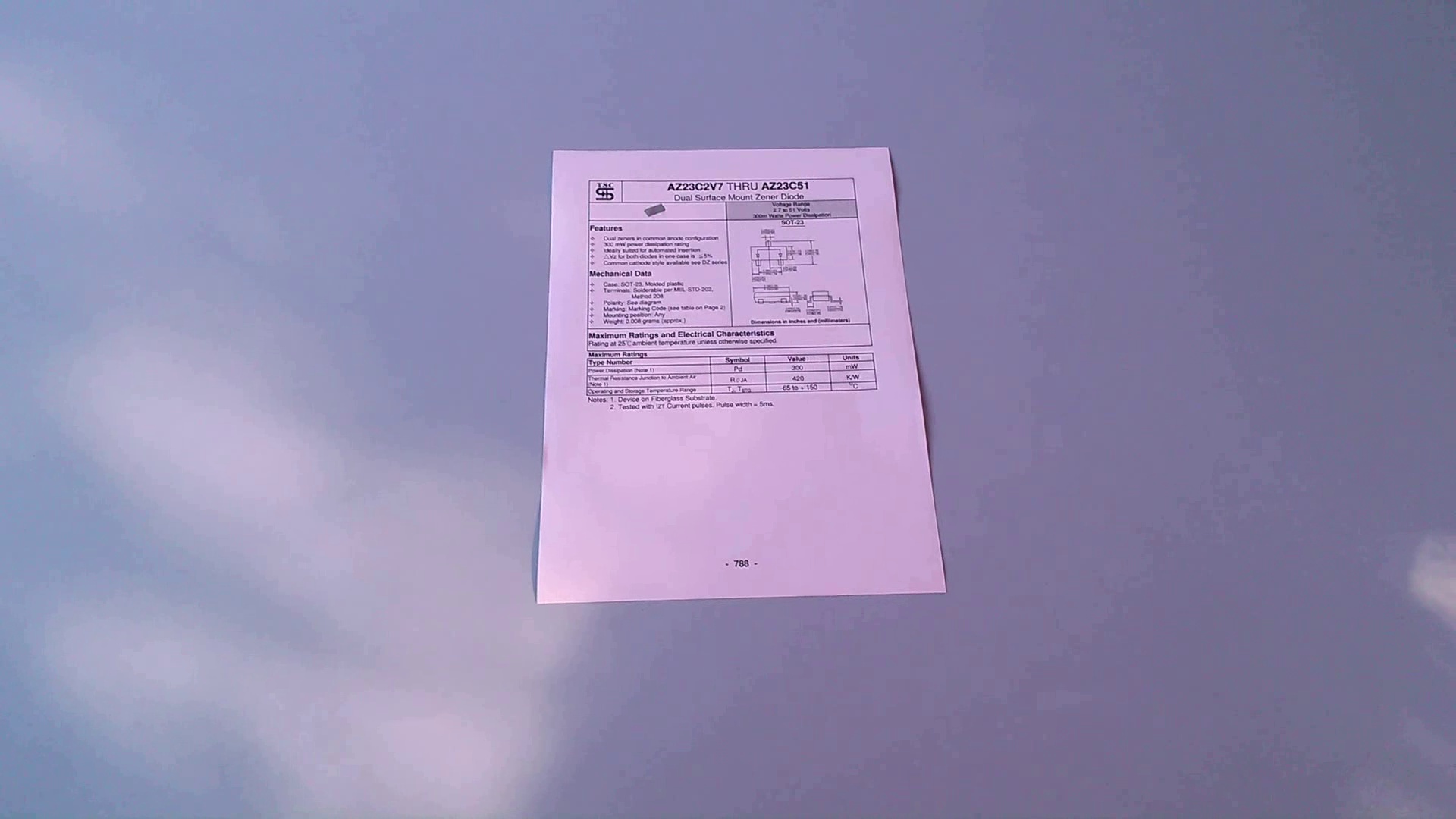
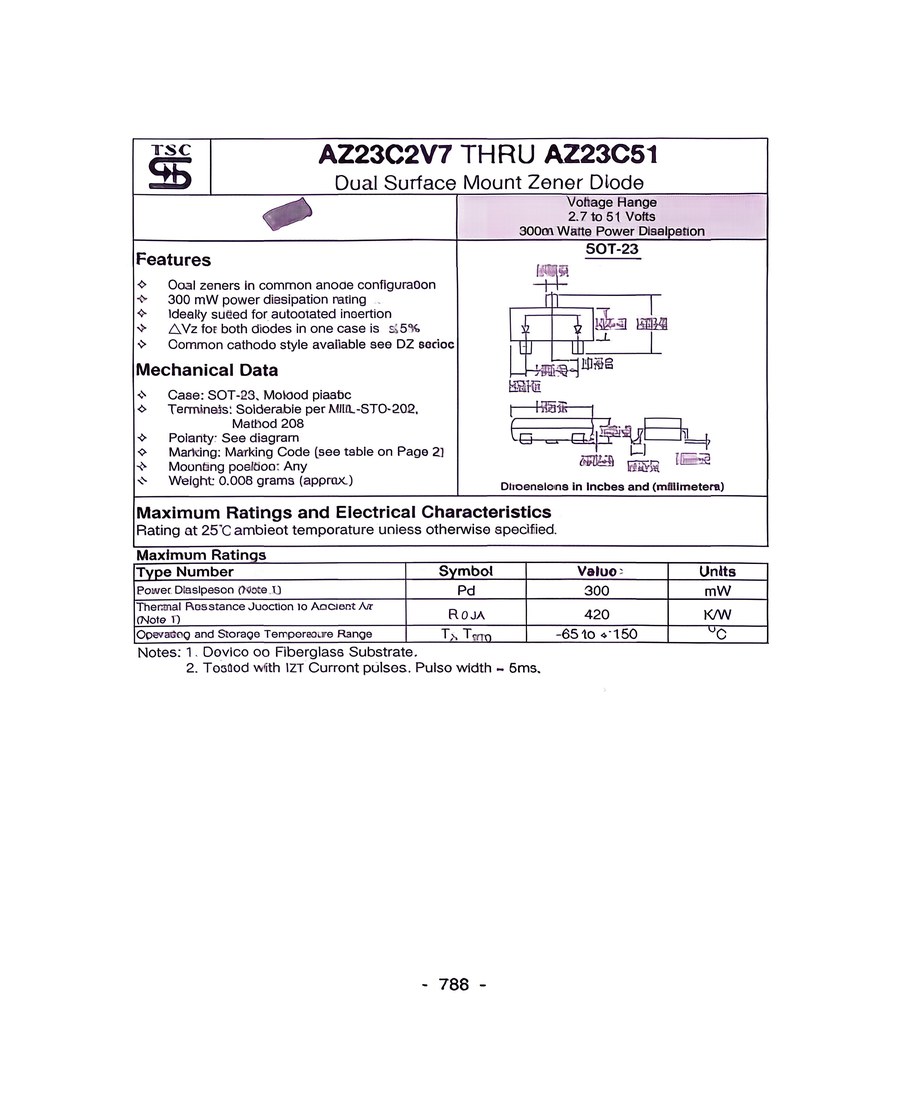
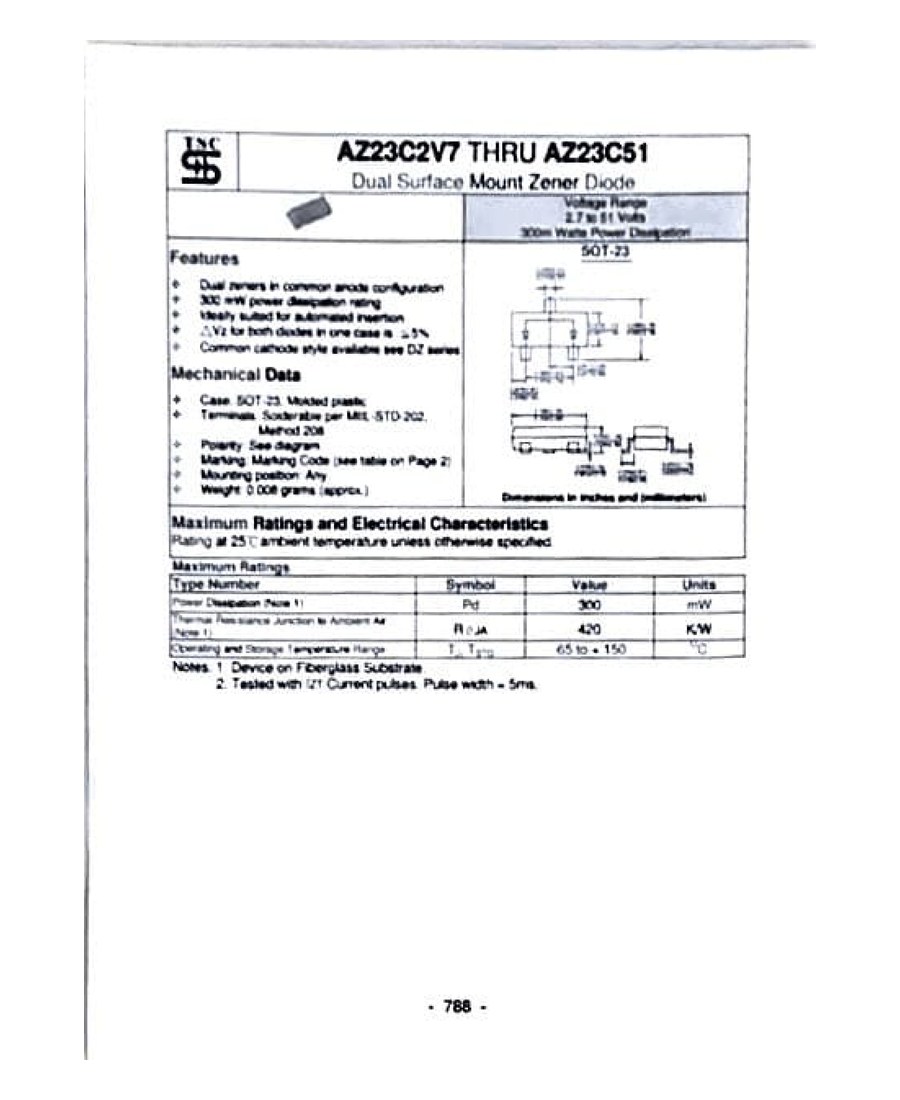
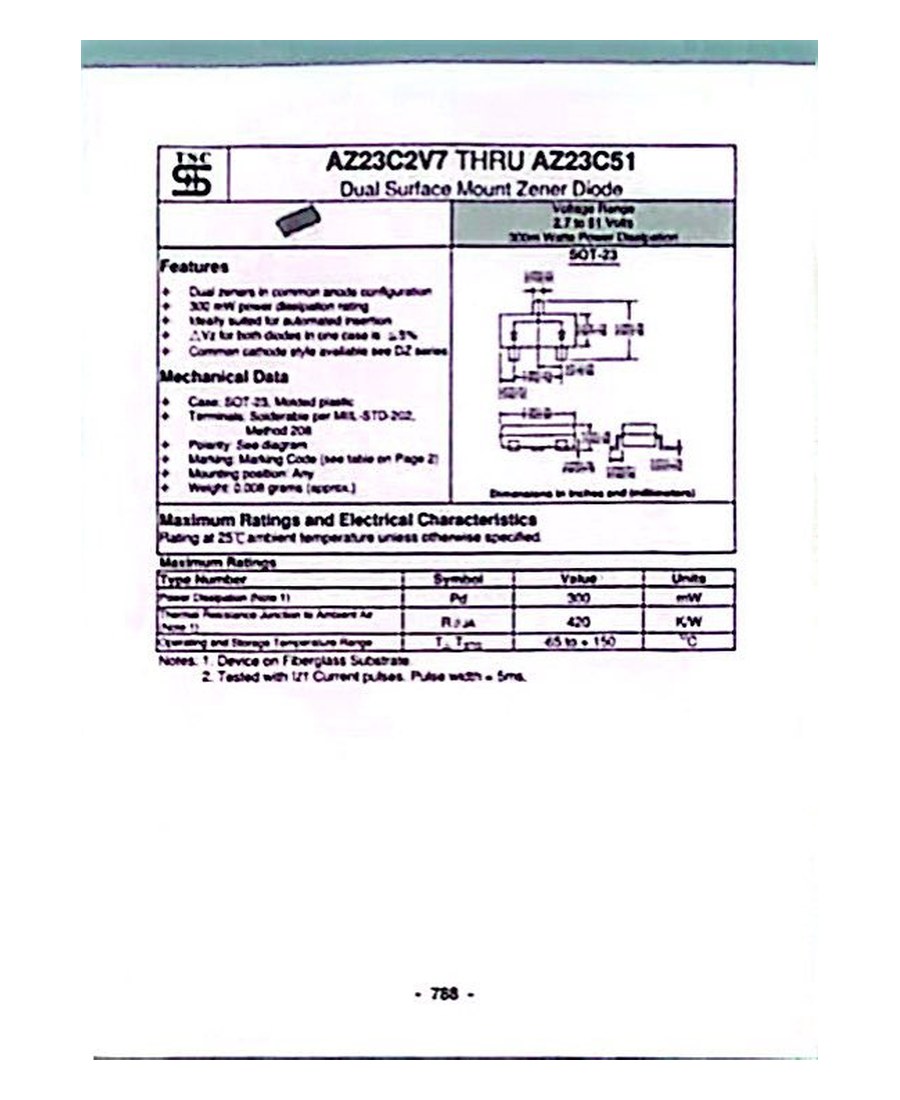
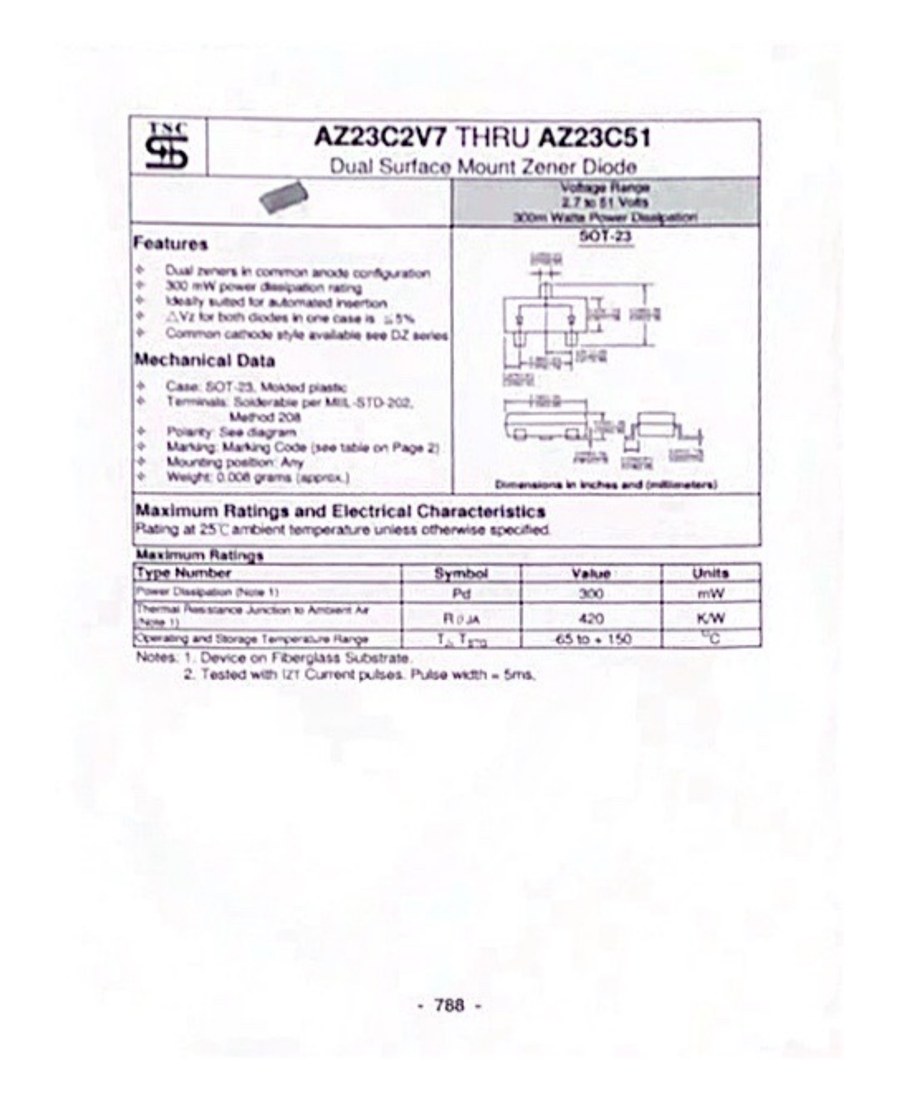
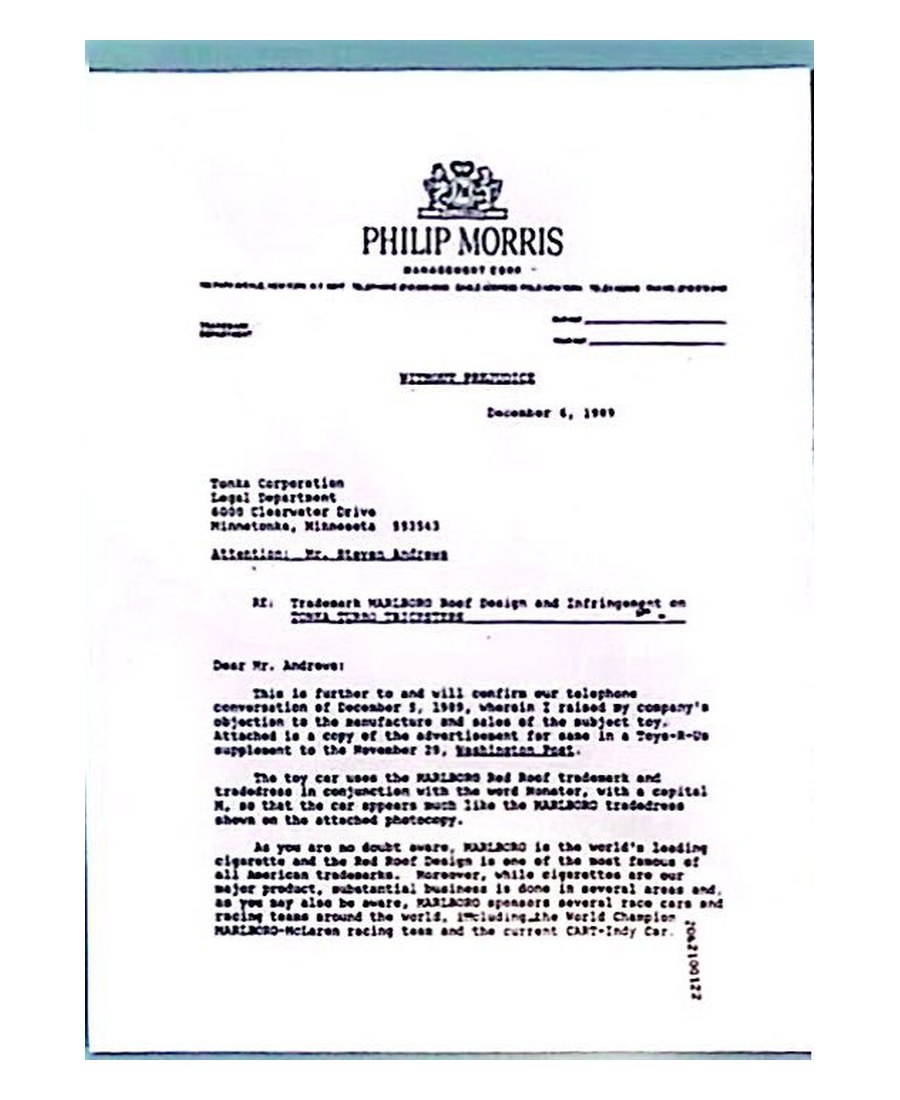
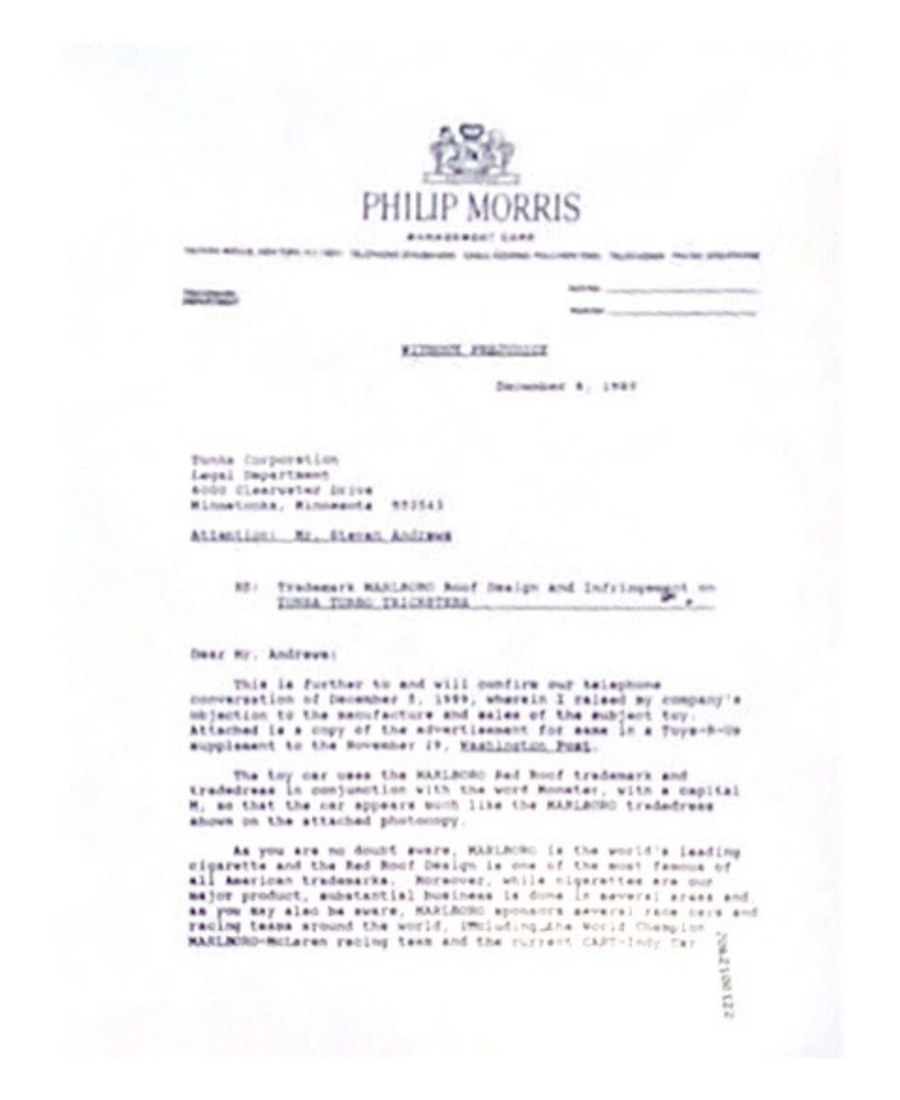
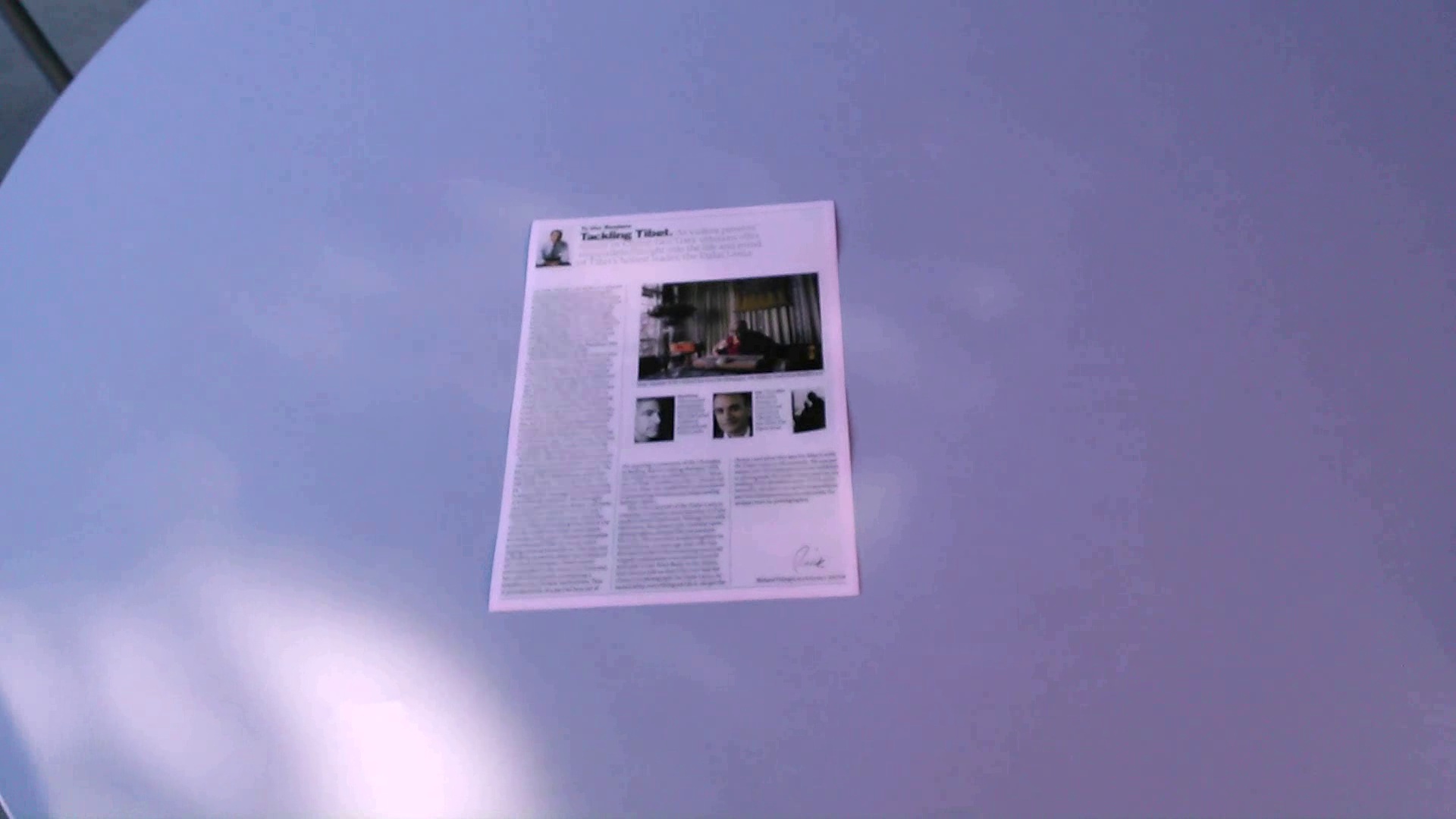
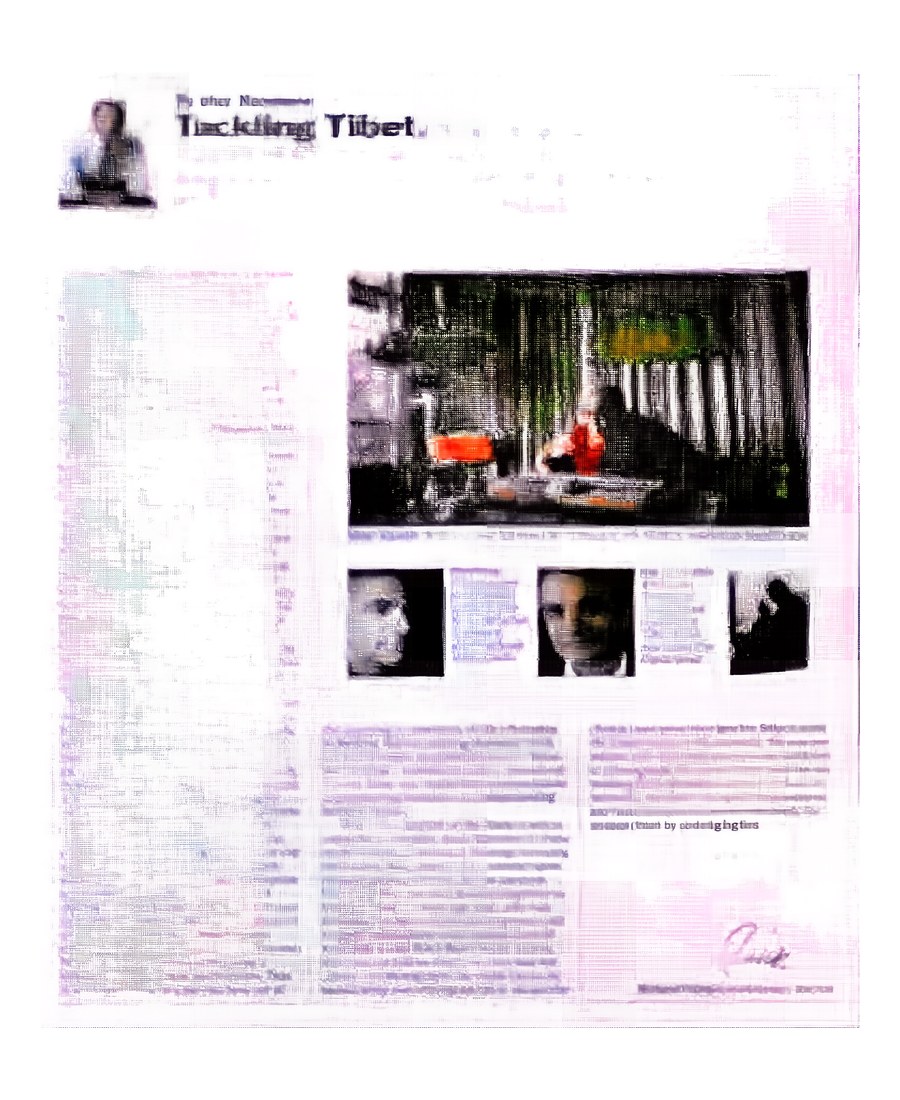
Ten SmartDoc 2015 frames, untouched: datasheets, a letter, a magazine page. Some are shot at a steep angle. Some have bad light. Three of them are below, next to Web Document Scanner, Adobe Scan, CamScanner, and iScanner. Look at the rectangle, the leftover desk, and the type. Each column is the unedited export from that tool.
01 — Datasheet, angled view
Original
Web Document Scanner
Adobe Scan
CamScanner
iScanner
06 — Letter, uneven light
Original
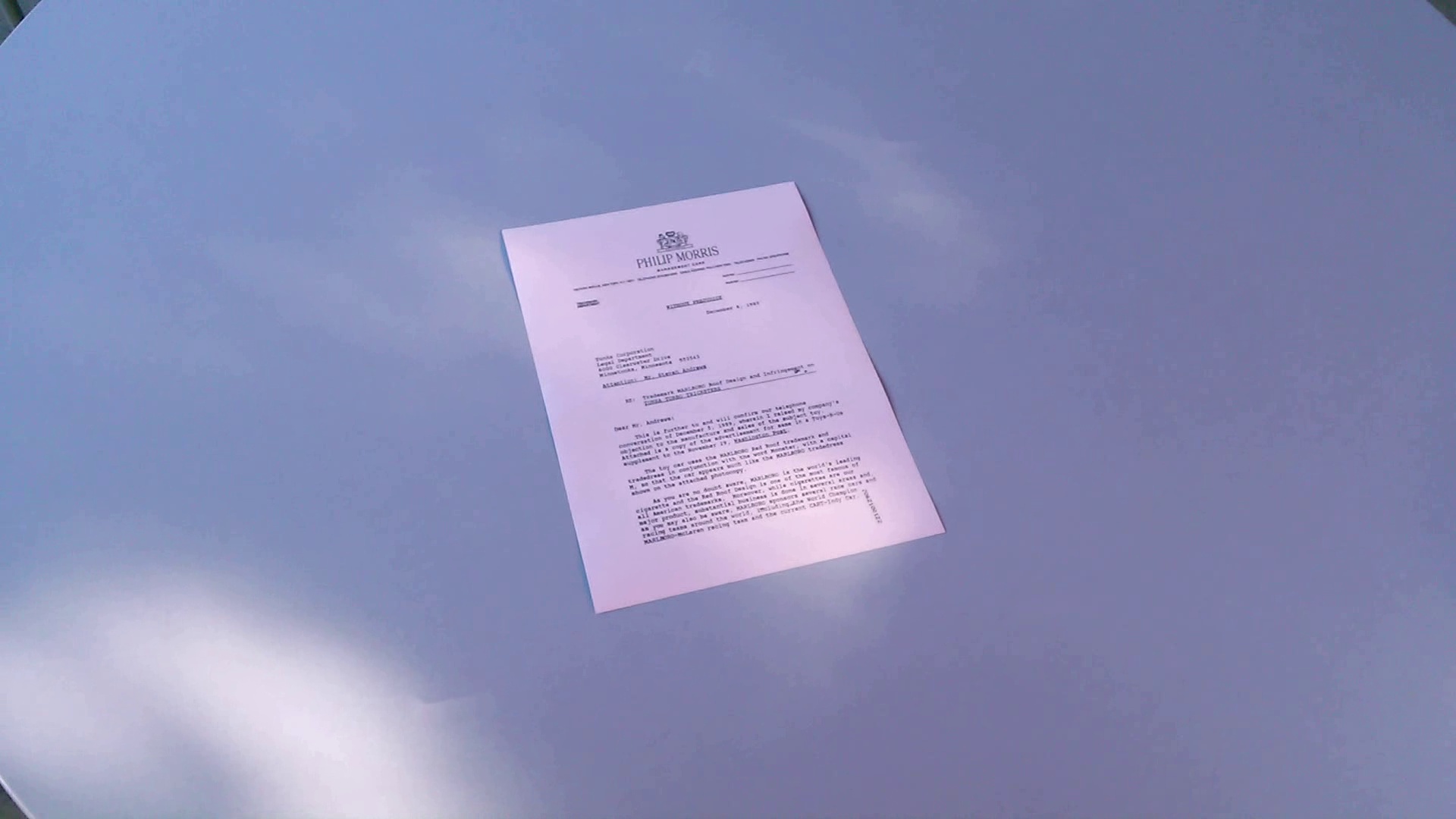
Web Document Scanner
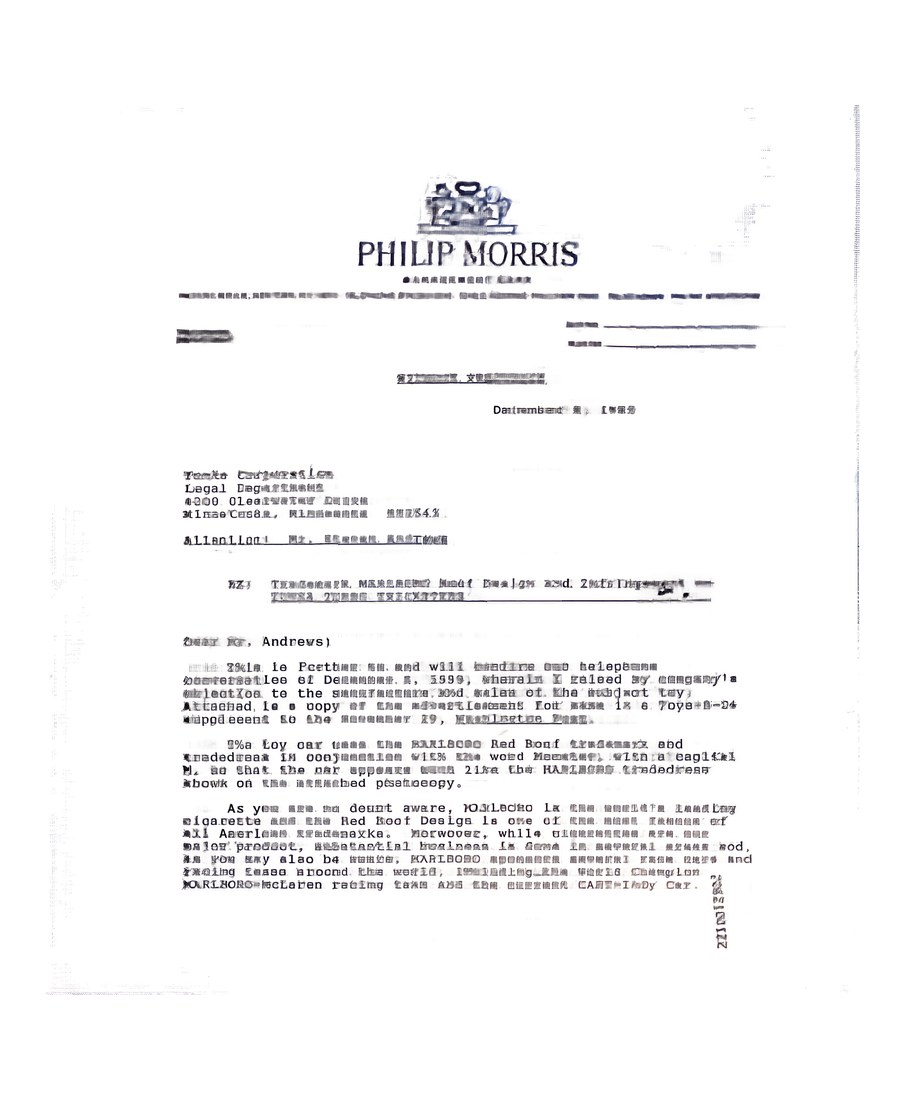
Adobe Scan
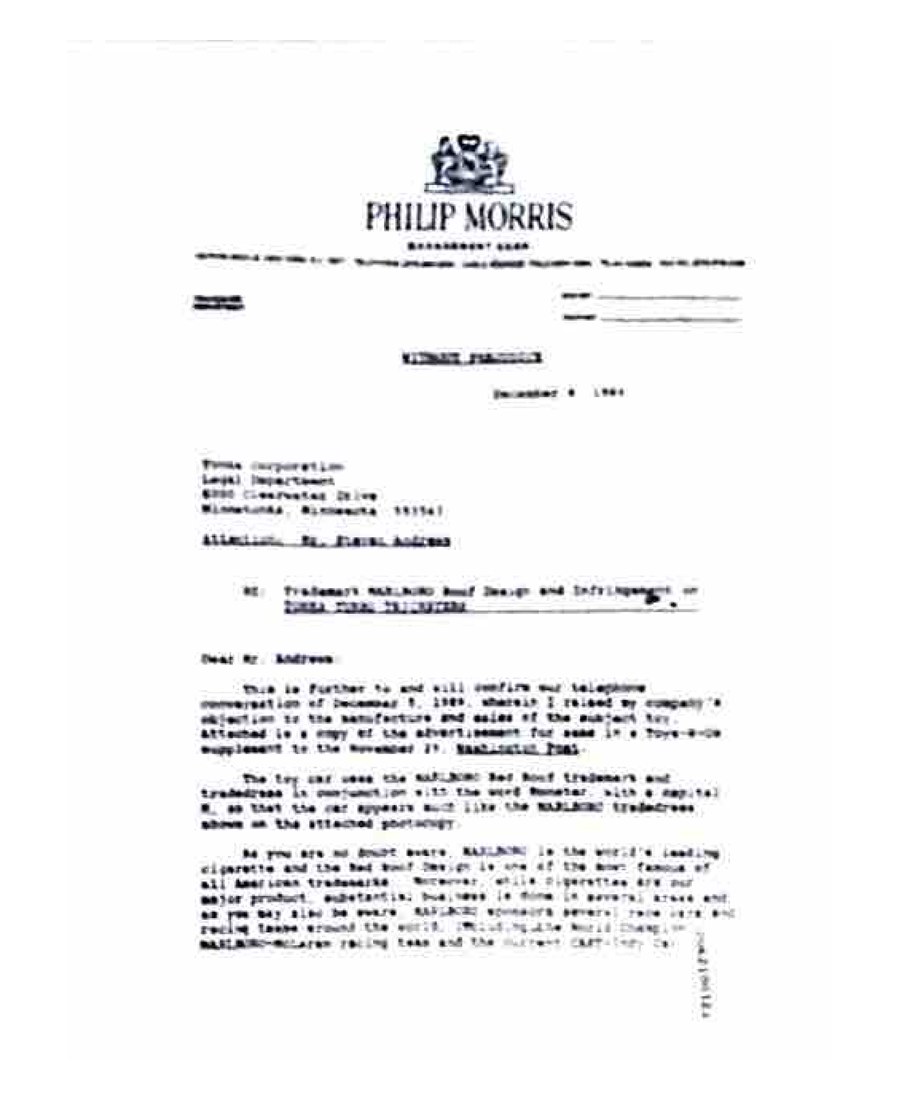
CamScanner
iScanner
08 — Magazine page, angled view
Original
Web Document Scanner
Adobe Scan
CamScanner

iScanner
CamScanner, Adobe Scan, and the rest
A CamScanner alternative is not a clone. Most people are tired of the install, the crop pass, or the cloud the file lands in. Here is when the original app still makes sense.
CamScanner alternative
CamScanner
CamScanner is the app a lot of people already have: batch scan, auto edges, crop, perspective, enhancement, shadow cleanup, OCR. A CamScanner alternative in the browser can shoot from the page or take files from the camera roll, WeChat, email, or AirDrop. It will not give you CamScanner’s OCR or its document library.
Keep it if you need OCR and a place inside the app to keep hundreds of scans.
Try something else if you just want a PDF, and you would rather not install another scanner.
Adobe Scan alternative
Adobe Scan
Adobe Scan is good at live edges, auto crop, cleaning, and AI straightening. It can import photos and do High-Speed Scan. Files go to Adobe’s cloud, and you still get a review step. An Adobe Scan alternative is useful if you do not want another Adobe account, or you are already on a laptop with the paper in front of you. Flattening is the default here, not a filter after crop.
Keep it if you live in Acrobat and want the scan next to everything else Adobe.
Try something else if you need a PDF from a shot you take on the page, or from files already on the machine.
iScanner alternative
iScanner
iScanner crops, fixes skew and curve, cleans the background, and adds multi-page editing plus OCR. An iScanner alternative is the scan part without the editor around it. The pages above are usable. Contrast and crop look different from the others. Sample 10 was still missing when we published.
Keep it if you want one app that scans, edits, and files.
Try something else if you only need the page found, flattened, and exported.
Genius Scan alternative
Genius Scan
Genius Scan detects the page, drops the background, fixes distortion, and removes shadows. It can process on the phone. A Genius Scan alternative in the browser is not the same privacy story: the file is uploaded, then deleted within 24 hours. That is not “it never left the device.”
Keep it if you picked Genius Scan so the pixels stay on the phone.
Try something else if you are on a computer and do not want another mobile app.
Microsoft Lens alternative
Microsoft Lens
Lens was the free scanner a lot of people used. It retired in 2026. New scans stopped after March 9. Microsoft points you to OneDrive, which does not save those scans locally. So a Microsoft Lens alternative is not a taste question. If you used to shoot, flatten, and keep a file, the browser tool still does that. Camera on the page, or a photo you already took.
Keep it if OneDrive is where the file has to go anyway.
Try something else if you still need a PDF or image on your device.
Google Drive scanner alternative
Apple Notes and Google Drive
Notes can find a page, add more pages, and save one PDF, on iPhone or iPad, mostly from the camera. Drive’s scanner is in the mobile app, not on the Drive website. Files land in Drive. A Google Drive scanner alternative (or a Notes one) is for when you are on a Windows machine, or you just want the file without opening those apps first.
Keep it if the scan belongs in Notes or Drive and you are already there.
Try something else if you want a PDF from the browser camera or from files on the computer.
online document scanner alternative
OnlineCamScanner and OptiPix
There are other browser scanners. OnlineCamScanner finds corners and builds a PDF; its own steps include an adjust-and-crop pass. OptiPix stays on your machine, with auto edges and perspective, and four-corner handles when detection misses. Web Document Scanner is also online. The difference is the default: camera or upload, then flatten and clean, without making you drag corners first.
Keep it if you want local-only processing (OptiPix), or you like setting the corners yourself.
Try something else if you want shoot or upload, then export, without a crop editor in the way.
How we ran the photos
Every tool got the same originals. We looked at what you can see: whether the page is square, how much desk is left, shadows, and whether the batch looks like one document. No made-up score.
- 10 SmartDoc 2015 frames, one background, three layouts.
- In the pictures: Web Document Scanner, Adobe Scan, CamScanner, iScanner (9/10; sample 10 pending).
- We looked at flattening, leftover background, readability, and consistency.
- No receipts, handwriting, folds, or curved books in this set.
- A newer app version, a different filter, or a hand crop can change the result.
What to look for in the pictures
Useful things to check: how much of the real page survived detection, whether text lines run straight, how much desk and shadow remain, whether small type is still readable, and how many pages you would have to fix by hand. Those are visible properties, not a score. An app can still be the right pick for OCR or a document vault.
Questions
Can I take the photo in the browser, or only upload?
Both. On a phone, the page can open the camera. You can also upload pictures you already have. Same cleanup either way.
What is the best CamScanner alternative if I already have the photos?
Upload them. A browser CamScanner alternative will flatten and clean without another install. Compare the CamScanner and Web Document Scanner columns above on the angled and uneven-light rows before deciding. Keep CamScanner if you need OCR or its library.
Is there a free Adobe Scan alternative that works in a browser?
Yes. One image a day, with a watermark. Pro drops the cap and the watermark, and takes up to 15 images in one job. You can shoot from the page or upload. No Adobe account. The Adobe Scan column above shows its output on the same angled and uneven-light photos.
What is a good iScanner alternative without the editor suite?
Something that finds the page, flattens it, and stops. That is the usual iScanner alternative if you do not want the manager. Crop and contrast still differ. Check the magazine and datasheet rows.
What replaced Microsoft Lens in 2026?
Microsoft retired Lens and stopped new scans after March 9, 2026. They send you to OneDrive, which does not keep the scan on the device. If you still want a file, use any scanner that exports PDF or images, including this one.
CamScanner vs Adobe Scan vs iScanner — which is better?
It depends on what you weigh. For how the scan looks — page rectangle, leftover desk, shadows — the three sample rows above show each tool’s output on identical photos. Adobe cloud, CamScanner’s library, and iScanner’s editor are reasons to keep those apps. Contrast and crop also differ; that is in the pictures.
Is a Genius Scan alternative the same as on-device scanning?
No. Genius Scan can stay on the phone. Here the photo is uploaded, then the upload and the scan are deleted within 24 hours.
Scan a page in the browser
Open the camera or upload files. Flattening and shadow cleanup run on their own. Export PDF, images, or ZIP.
Open the web scanner